# 部署 MinIO 集群
> 在 Kubernetes 上使用 Helm Chart 部署 MinIO 分布式对象存储集群的指南,包括安装、验证、Bucket 创建和监控集成步骤。
# 部署 MinIO 集群
在该指南中,你将学会如何使用 Helm Chart 在 Kubernetes 上部署 MinIO 集群。
## 前置依赖
- Kubernetes >= v1.18.0
- [kubectl](https://kubernetes.io/docs/tasks/tools/install-kubectl/) >= v1.18.0
- [Helm](https://helm.sh/docs/intro/install/) >= v3.0.0
## 配置管理
在安装之前,你需要创建一个 `minio-values.yaml` 配置文件。请根据你的 Kubernetes 环境调整以下配置:
```yaml
global:
security:
allowInsecureImages: true
image:
registry: greptime-registry.cn-hangzhou.cr.aliyuncs.com
repository: greptime/minio
tag: 2025.4.22-debian-12-r1
auth:
rootUser: greptimedbadmin
rootPassword: "greptimedbadmin"
resources:
requests:
cpu: 500m
memory: 500Mi
limits:
cpu: '2'
memory: 2Gi
extraEnvVars:
- name: MINIO_REGION
value: "ap-southeast-1"
statefulset:
replicaCount: 4
mode: distributed
persistence:
storageClass: null
size: 100Gi
```
## 安装 MinIO 集群
在 minio 命名空间中安装 MinIO 集群:
```bash
helm upgrade \
--install minio oci://greptime-registry.cn-hangzhou.cr.aliyuncs.com/charts/minio \
--create-namespace \
--version 16.0.10 \
-n minio --values minio-values.yaml
```
预期输出
```bash
Release "minio" does not exist. Installing it now.
Pulled: greptime-registry.cn-hangzhou.cr.aliyuncs.com/charts/minio:16.0.10
Digest: sha256:96e220fd7cf1596879a243453b39c96a95d34f0005fdd452da3d094a7b386eb4
NAME: minio
LAST DEPLOYED: Tue May 12 17:21:30 2026
NAMESPACE: minio
STATUS: deployed
REVISION: 1
TEST SUITE: None
NOTES:
CHART NAME: minio
CHART VERSION: 16.0.10
APP VERSION: 2025.4.22
Did you know there are enterprise versions of the Bitnami catalog? For enhanced secure software supply chain features, unlimited pulls from Docker, LTS support, or application customization, see Bitnami Premium or Tanzu Application Catalog. See https://www.arrow.com/globalecs/na/vendors/bitnami for more information.
** Please be patient while the chart is being deployed **
MinIO® can be accessed via port on the following DNS name from within your cluster:
minio.minio.svc.cluster.local
To get your credentials run:
export ROOT_USER=$(kubectl get secret --namespace minio minio -o jsonpath="{.data.root-user}" | base64 -d)
export ROOT_PASSWORD=$(kubectl get secret --namespace minio minio -o jsonpath="{.data.root-password}" | base64 -d)
To connect to your MinIO® server using a client:
- Run a MinIO® Client pod and append the desired command (e.g. 'admin info'):
kubectl run --namespace minio minio-client \
--rm --tty -i --restart='Never' \
--env MINIO_SERVER_ROOT_USER=$ROOT_USER \
--env MINIO_SERVER_ROOT_PASSWORD=$ROOT_PASSWORD \
--env MINIO_SERVER_HOST=minio \
--image docker.io/bitnami/minio-client:2025.4.16-debian-12-r1 -- admin info minio
To access the MinIO® web UI:
- Get the MinIO® URL:
echo "MinIO® web URL: http://127.0.0.1:9001/minio"
kubectl port-forward --namespace minio svc/minio 9001:9001
Substituted images detected:
- greptime-registry.cn-hangzhou.cr.aliyuncs.com/greptime/minio:2025.4.22-debian-12-r1
```
## 验证 MinIO 集群安装
检查 MinIO Pod 的状态:
```bash
kubectl get pod -n minio
```
预期输出
```bash
NAME READY STATUS RESTARTS AGE
minio-0 1/1 Running 0 30s
minio-1 1/1 Running 0 30s
minio-2 1/1 Running 0 30s
minio-3 1/1 Running 0 30s
```
# 创建 Bucket 和 Access Key
## 访问 MinIO 控制台
1. 首先需要将 MinIO 控制台服务暴露出来,你可以使用 `kubectl port-forward` 命令:
```bash
kubectl port-forward -n minio svc/minio 9001:9001
```
2. 打开浏览器访问 http://localhost:9001/login
3. 使用配置文件中设置的账号密码登录:
- username: `greptimedbadmin`
- password: `greptimedbadmin`

## 创建 Bucket
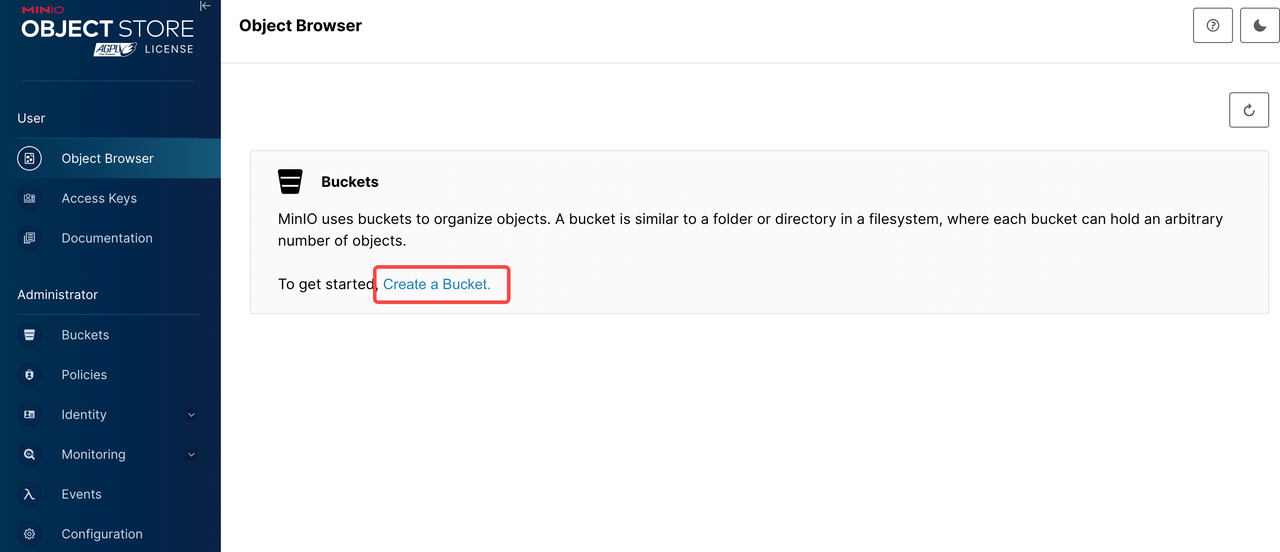
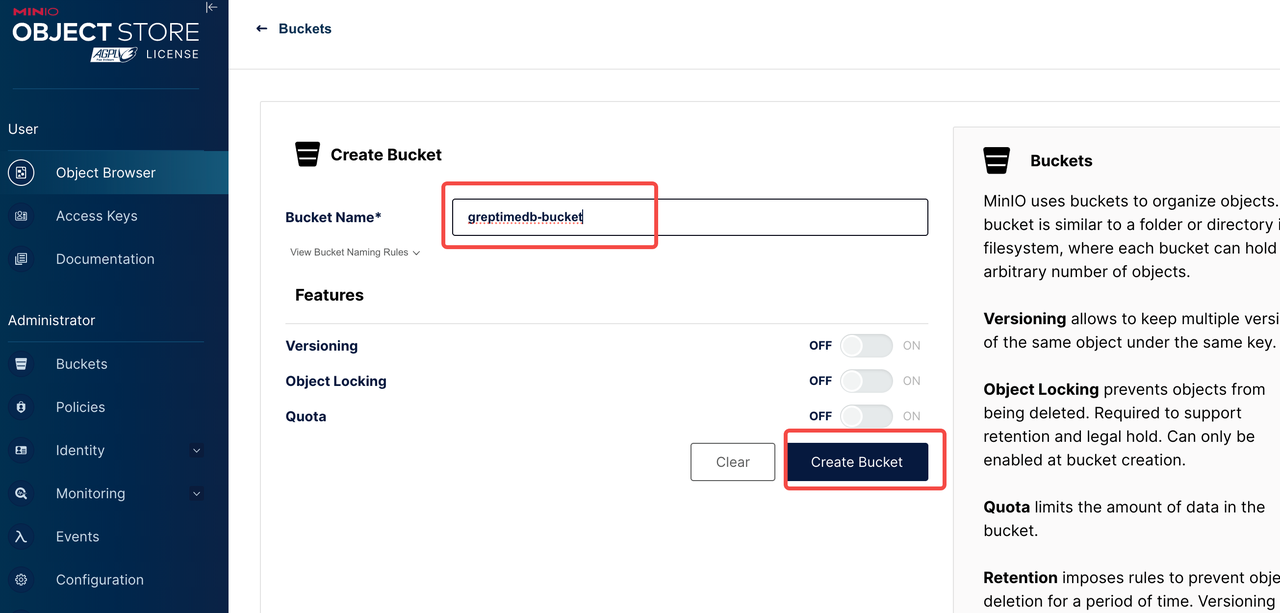
登录 MinIO 控制台后,按照以下步骤创建 Bucket:
1. 点击左侧菜单栏的 "Buckets"
2. 点击 "Create Bucket" 按钮
3. 输入 Bucket 名称,例如:`greptimedb-bucket`
4. 点击 "Create Bucket" 确认创建
## 生成 Access Key
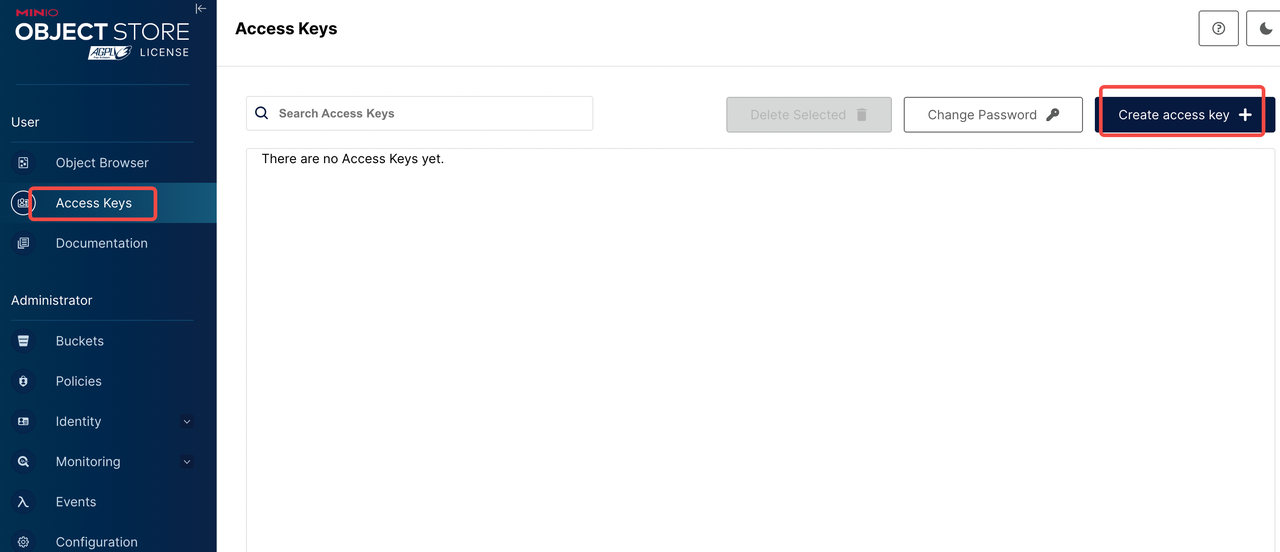
1. 点击左侧菜单栏的 "Access Keys"
2. 点击 "Create Access Key" 按钮
3. 可选:设置权限策略
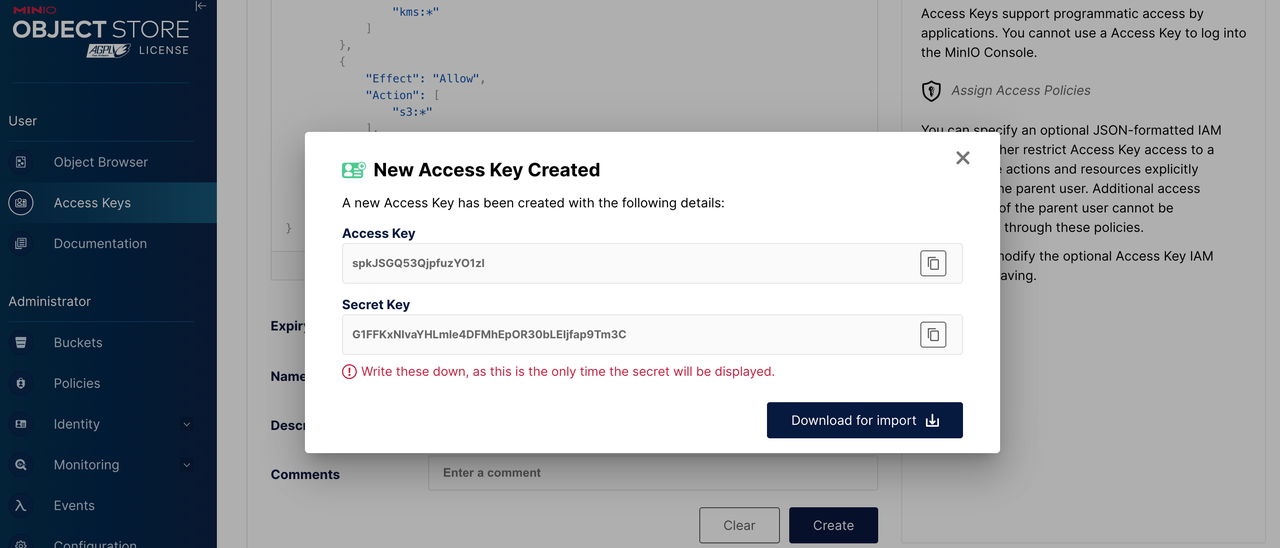
4. 点击 "Create" 生成 Access Key 和 Secret Key
:::warning
⚠️ 重要:请妥善保存以下信息,在部署 GreptimeDB 时会用到。
- Bucket 名称:greptimedb-bucket
- Region:ap-southeast-1
- MinIO Endpoint:`http://minio.minio:9000`
- Access Key:创建时生成的 Access Key
- Secret Key:创建时生成的 Secret Key
:::
# 配置 GreptimeDB 使用 MinIO
在部署 GreptimeDB 集群时,可以通过以下配置使用 MinIO 作为后端存储:
```yaml
objectStorage:
credentials:
accessKeyId: ""
secretAccessKey: ""
s3:
bucket: "greptimedb-bucket"
region: "ap-southeast-1"
root: "greptimedb-data"
endpoint: "http://minio.minio:9000"
```
# 监控
- 安装 Prometheus Operator (例如: [kube-prometheus-stack](https://github.com/prometheus-community/helm-charts/tree/main/charts/kube-prometheus-stack))。
- 安装 podmonitor CRD。
要监控 MinIO 集群,你需要提前部署好监控系统(如 Prometheus 和 Grafana)。然后在 `minio-values.yaml` 中增加以下内容,并重新执行更新 MinIO 配置:
```yaml
metrics:
enabled: true
serviceMonitor:
enabled: true
namespace: minio
labels:
release: kube-prometheus-stack
interval: 30s
```
## Grafana dashboard
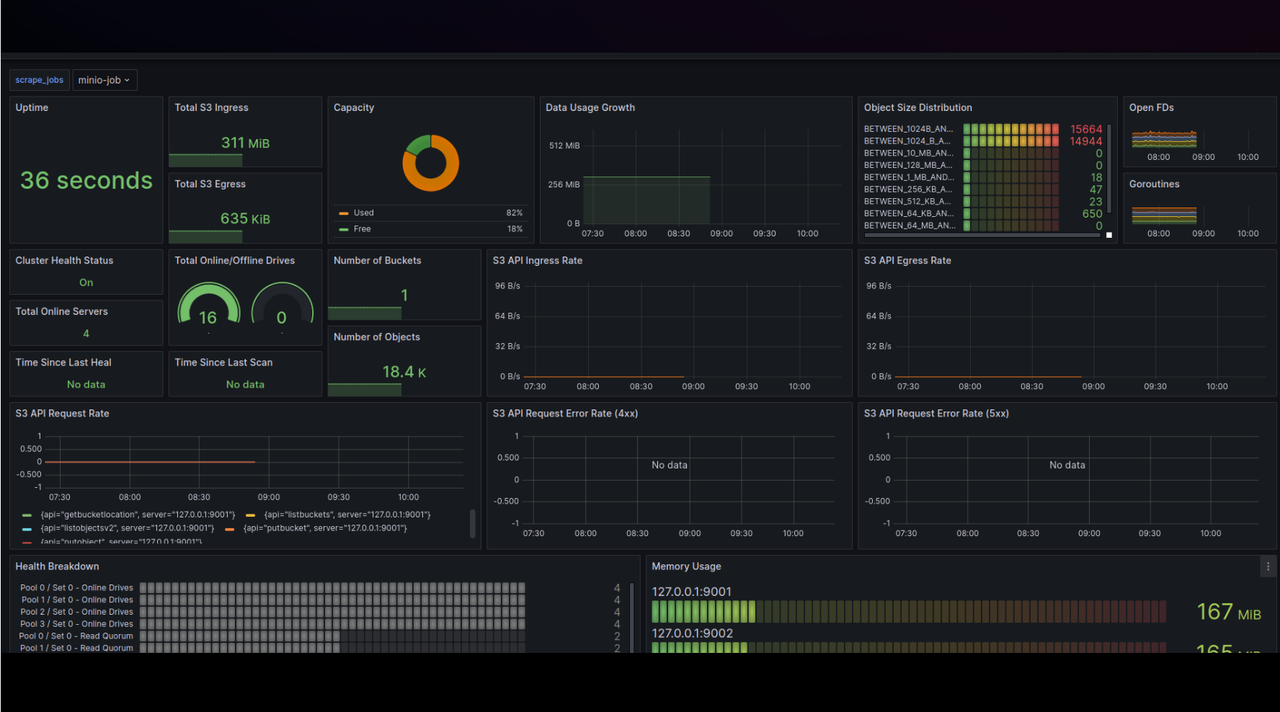
使用 [MinIO Dashboard](https://grafana.com/grafana/dashboards/13502-minio-dashboard/) (ID: 13502) 来监控 MinIO 的指标。
1. 登录你的 Grafana。
2. 导航至 Dashboards -> New -> Import。
3. 输入 Dashboard ID: 13502, 选择数据源并加载图表。
# 卸载 MinIO 集群
使用以下命令卸载 MinIO 集群:
```bash
helm -n minio uninstall minio
```
## 删除 PVCs
删除 PVCs 操作将会删除 MinIO 集群的持久化数据。请确保在继续操作之前已经备份了数据。
```bash
kubectl -n minio delete pvc -l app.kubernetes.io/instance=minio
```